
Video Workshop
Connexense Video Workshop
Video Workshop
in the site menu.
Requirements: Windows and latest Chromium browser (Chrome, Edge, Brave)
(Page needs significant updates - functionality well exceeds documentation.
Contact Support for personal orientation.)
(Page needs significant updates - functionality well exceeds documentation.
Contact Support for personal orientation.)
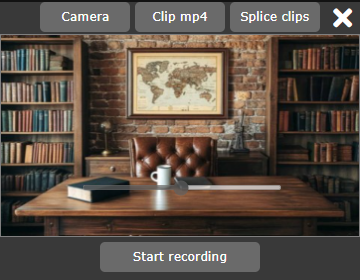
Camera
button to open the camera control. Select your webcam and optional background, set audio EQ. Close the control to get the Start recording
button.
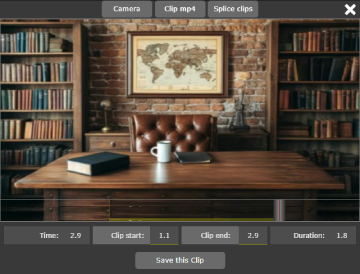
Clip mp4
function to save clips of your mp4s by trimming them at both ends. This button opens your file-selector dialog. Select and load your mp4 video.
Splice clips
button to join (splice) several clips together into one contuous video.
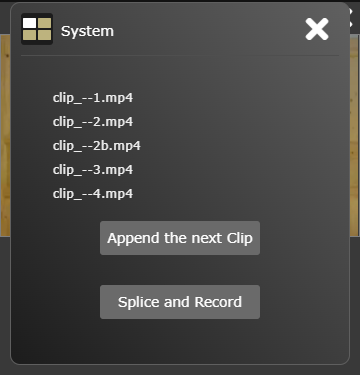
Append the next Clip
opens the file dialog so you can select and load the next clip.Splice and Record
plays the whole video through and finally opens the save-file dialog so you can save the finished video.
Enjoy!